 The Modest Goose
How to Build a Personal Task Tracker in Excel
A personal task tracker in Excel doesn’t have to resemble the project management system at work. In fact, I’d be rather disappointed if it did. The point is to get through the things you have promised to do, not to spend Sunday evening formatting a Gantt chart for the laundry.
One table with a task, due date, status and a realistic estimate of effort can do most of the work. The useful bit is seeing what fits into your actual day, instead of what fits into the spreadsheet.
The columns I would actually use
I would use seven columns: Task, Project, Due date, Priority, Status, Estimated minutes and Next action. Start with ordinary language for the status: Not started, In progress, Waiting and Done. A task named ‘Sort out finances’ is less useful than ‘Download last month’s statements’. If the next action is unclear, that is usually the first thing to fix.
Put an owner column in only if the tracker is genuinely shared. A personal system does not need a field for every conceivable situation. Each extra field is a small administrative obligation every time you add a task.
Build a table before you build a dashboard
Put the column headings in row 1. Select the range and use Insert > Table. Excel tables allow filtering and can expand as new rows are added. Use Data Validation to create dropdowns for priority and status if you want consistent labels. In this example, column C is Due date, column E is Status and column F is Estimated minutes.
There’s no need for macros. A date test using TODAY() and a status check can flag overdue, unfinished work with ordinary conditional formatting. For most of us that is quite enough automation.
An optional formula in H2 can flag overdue tasks: =IF(AND(C2<>"",C2<TODAY(),E2<>"Done"),"Overdue",""). Copy the formula down. Dates need to be actual Excel date values, not merely text that resembles dates. Use conditional formatting to highlight overdue rows if that helps.
Five tasks, one free hour
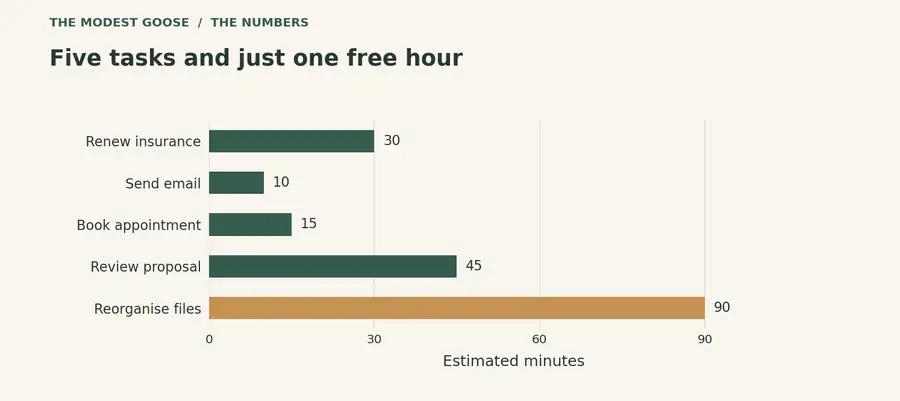
Suppose you have five open tasks: renew insurance (30 minutes), send an email (10), review a proposal (45), book an appointment (15) and reorganise digital files (90). You have one hour available this evening.
Add the estimates and we have 190 minutes of work (30 + 10 + 45 + 15 + 90). The spreadsheet cannot create the missing 130 minutes.
I would renew the insurance, send the email and book the appointment. That’s 30 + 10 + 15 = 55 minutes, with five left over. Find another slot for the proposal, and let the files remain disorganised until there’s a genuine reason to deal with them.
That is already a more useful planning exercise than selecting the first five rows in a list and hoping the evening will expand to accommodate them.
The tracker shouldn’t need its own tracker
Capture new commitments quickly, review the list once a day and archive completed items periodically. Keep genuine deadlines distinct from aspirational dates. If you keep moving the same task to tomorrow, either make it smaller, reserve specific time for it or reconsider whether it needs doing.
I would avoid spending an entire Saturday designing the perfect task tracker. The objective is to spend less time remembering obligations, not more time formatting them.
A daily view that earns its space
If your table is called Tasks and the relevant columns are named Status and Estimated minutes, a simple formula such as =SUMIFS(Tasks[Estimated minutes],Tasks[Status],"<>Done") calculates the total estimated effort for rows not marked Done. This includes waiting items, so you may want another criterion or a filtered view for immediately actionable work. Check the formula against a few rows manually before using it as the basis of a plan.
Repeat jobs and the things you’re waiting for
Some commitments repeat: renewing a monthly service, checking a household bill or reviewing your finances. You can record the next due date after completing each occurrence, or create a separate recurring-task list with the frequency and the next date. The second approach can be helpful if you want to preserve a history of completed work without creating a very long list of duplicates.
Waiting items deserve their own status. Suppose you have submitted a form and are waiting for a response before taking the next step. There is little point seeing the same incomplete task every morning as though you could finish it yourself. Record what you are waiting for and, if necessary, a date to follow up. That converts a vague open commitment into a specific future action.
I would also avoid assigning a due date to every item simply because the column exists. A renewal with a contractual deadline and a cupboard you would like to reorganise are not the same sort of commitment. Use actual deadlines where they matter and leave optional ideas undated until you decide to schedule them.
Keep the maintenance pleasantly dull
Protect the file from accidental changes by keeping a backup or using version history where available. If you share the workbook, be clear about who is allowed to edit it. Keep sensitive employer and household information out of inappropriate shared locations. These practical details matter more than another elaborate visual feature.
The first version of the tracker will probably not be exactly what you need. That is fine. Use it for a normal week before deciding which additional columns or formulas deserve a place. If you discover that you never use the priority score but frequently need to know who you are waiting for, adjust the structure accordingly. A task tracker is one of those tools that improves through actual use. It does not need to be impressive before it can be useful.
You can use the column structure above to build your own.
If you can close the spreadsheet knowing what to do next, it is working. If the next thing to do is improve the spreadsheet again, perhaps give the rest of the afternoon back to yourself.
Sources and methodology
General information. This article shares ideas and examples for organising work and life. It is not professional advice. Full disclaimer.